Early Release Guard
Review your regression findings
Every regression is grouped by the project where it was found. Open one to see what changed, how to verify it, and everything needed to fix it. For how to reach this screen, see Read the result.
What this does
Groups every regression from a run by the project it was found in, then opens into a detail view with its own sections once you click one.
Prerequisites
Start with a finished analysis run. See Read the result for how to reach this screen.
Steps
-
The findings list, grouped by project. A regression can surface in a different project than the one that actually changed. A change in one project can break another that depends on it, and Early lists that regression under the project that changed, tagged as a dependency finding. In the example below,
backendshows 3 findings, one of which actually brokeearly-cli.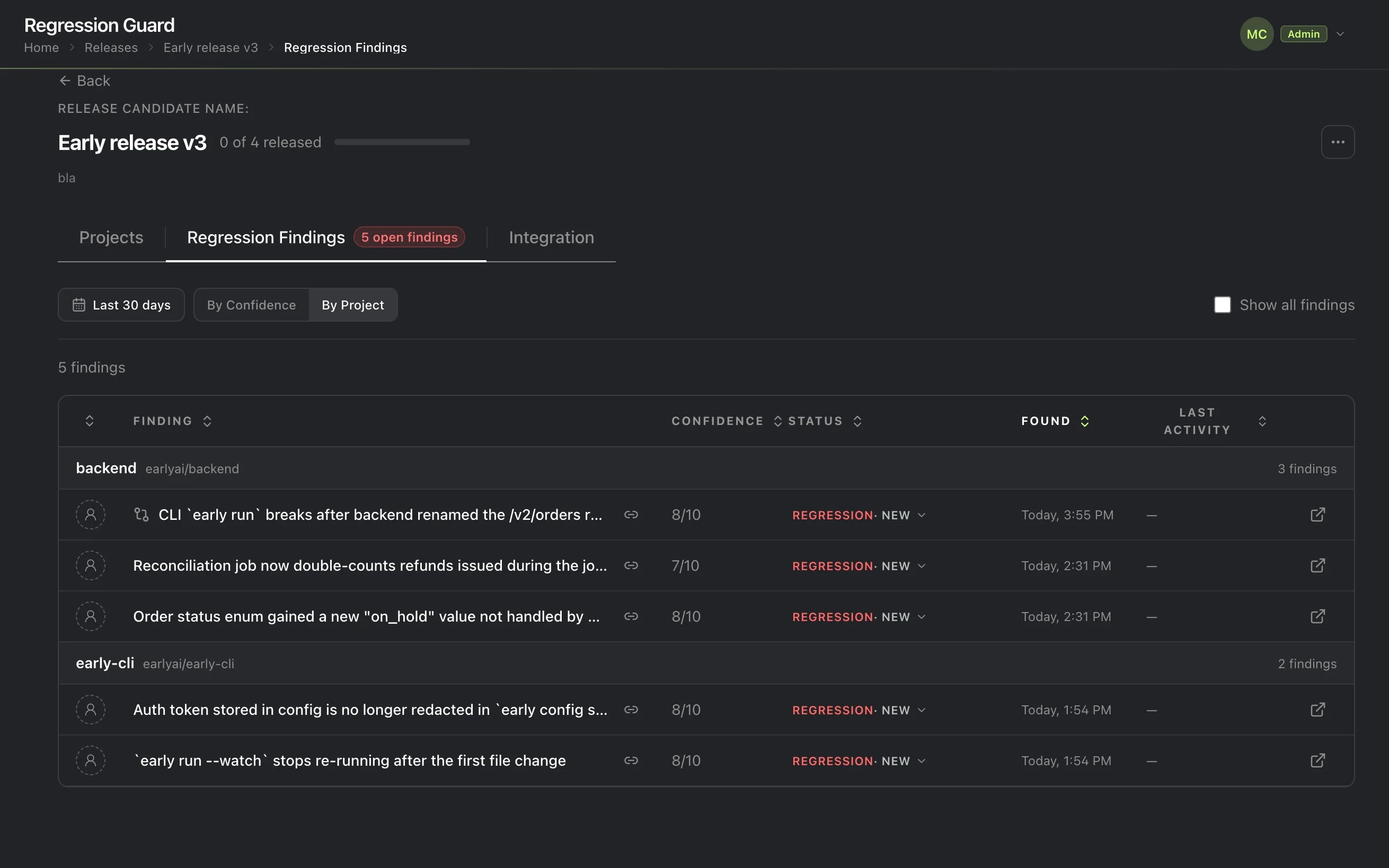
Each finding’s status badge tells you what it is and whether it still needs a decision:
- Expected: Early’s own assessment that this change is not a regression.
- Regression or Bug, with New: flagged as worth a decision, and nobody has acted on it yet.
- Closed:
means the finding is already resolved, with its reason (Fixed, Won’t fix, Fix later, Expected, or Other) shown alongside.
-
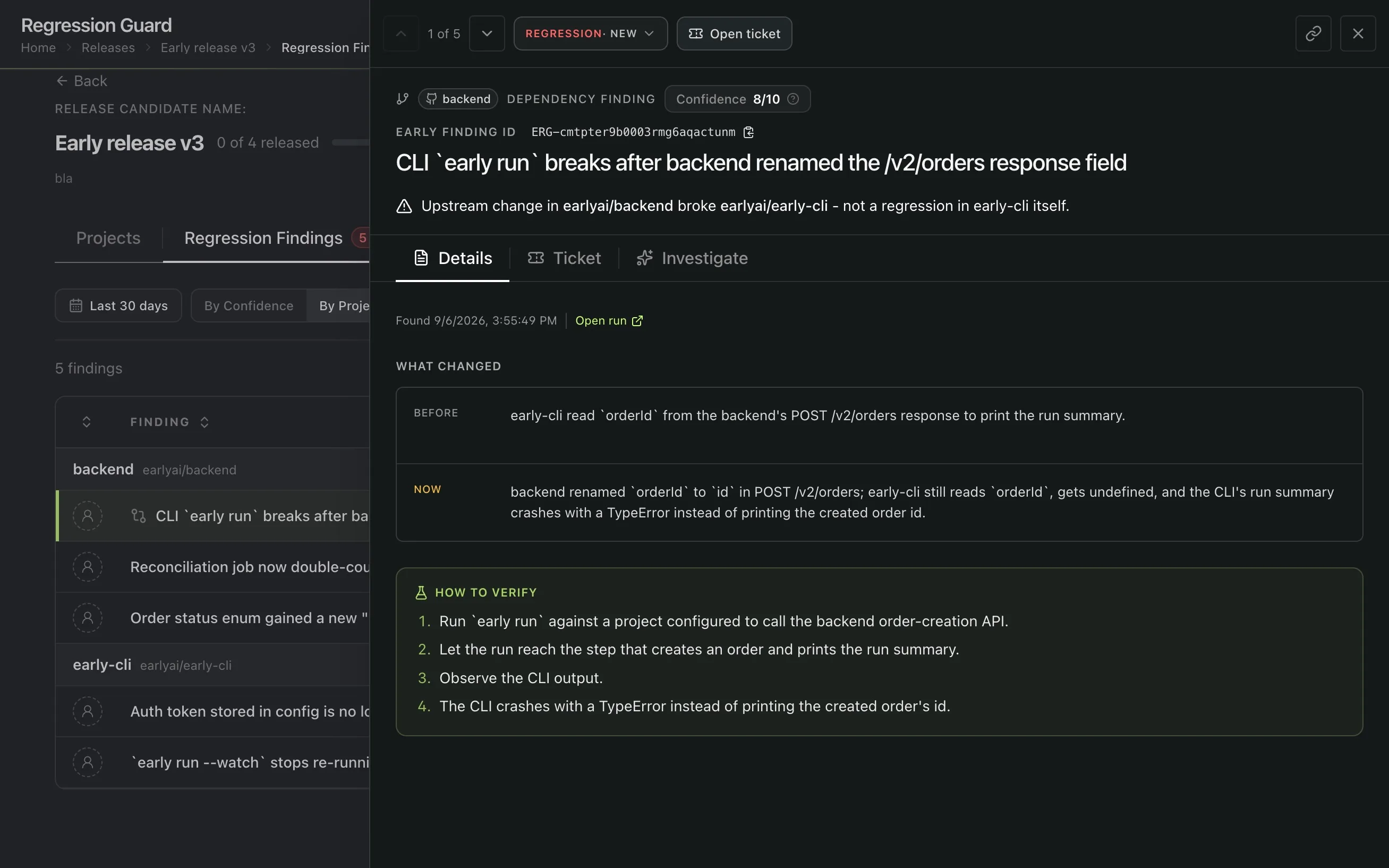
Finding details. Click a regression to open it. The Details tab shows the business behavior before the change and after it, plus a step-by-step reproduction flow for verifying the regression or verifying the fix once one is applied.
-
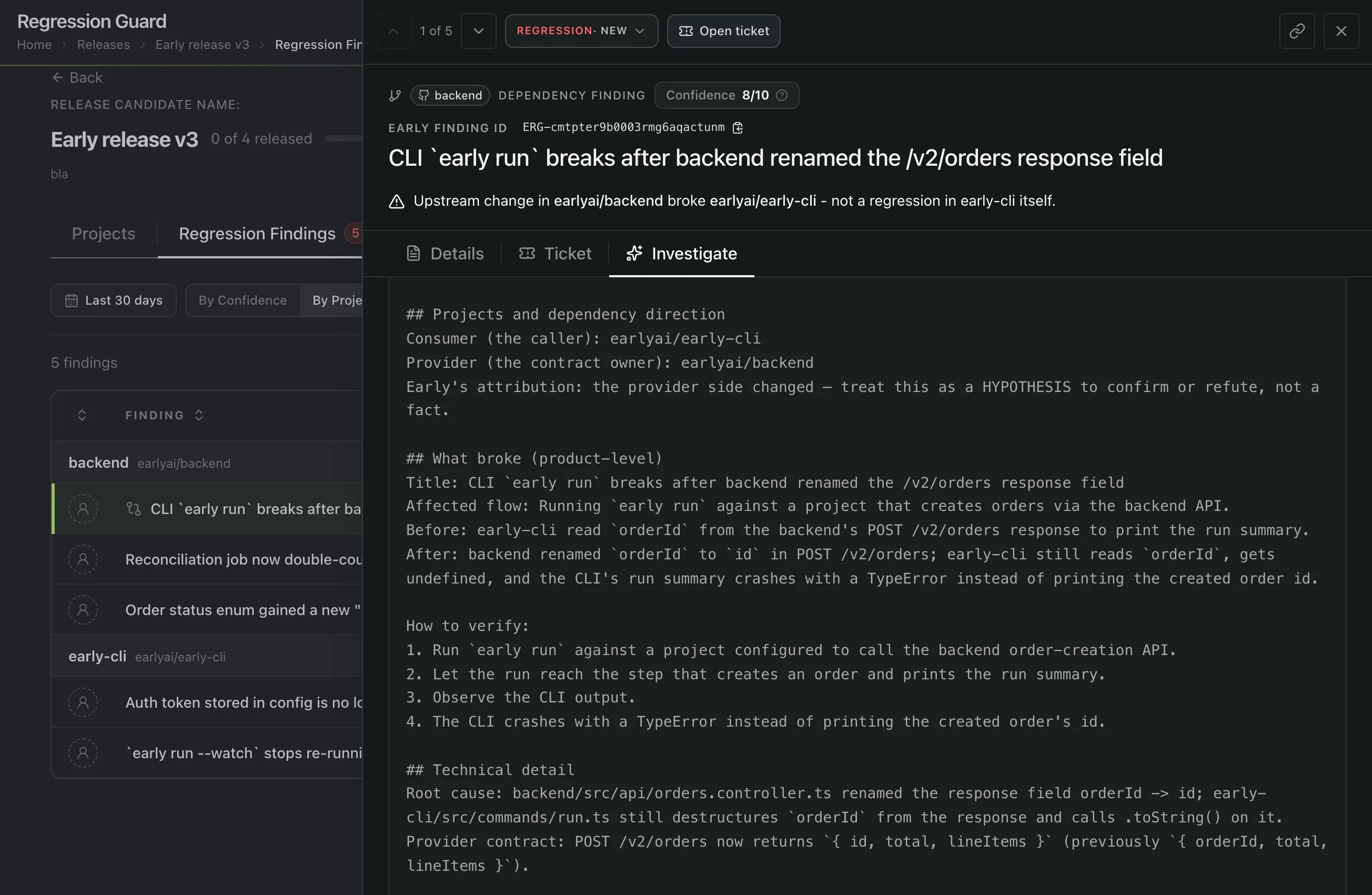
Investigate. This tab holds everything needed to fix the regression: why it happened, which change broke the previously-stable behavior, a root-cause analysis, and how to fix it, all written out as a ready-made prompt for an AI coding tool.
Next
Classifying, closing, assigning, and tracking a finding will be covered in an upcoming release.